Description
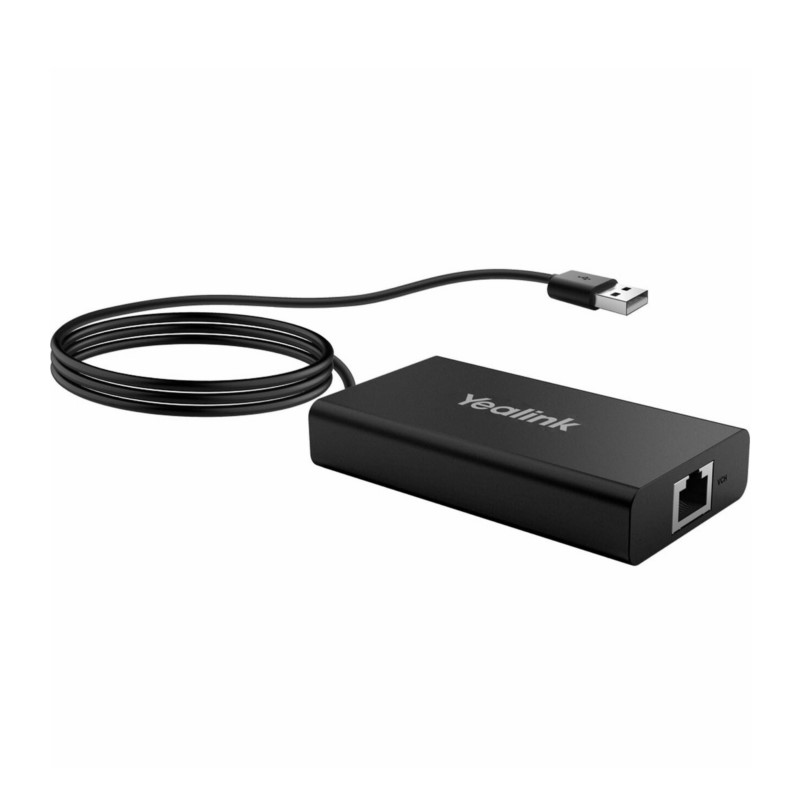
The Yealink MVC-BYOD-Extender enables seamless transformation between Microsoft Teams Rooms (MTR) and various UC platforms. Simply bring your device, connect the extender’s USB cable to your laptop, and initiate a video meeting effortlessly.
Users can experience immersive video and audio quality through dedicated devices, enjoy intuitive meeting controls via the Yealink MTouch Touch Panel, and utilize wireless sharing capabilities with the Yealink Wireless Presentation Pod.
NOTE
Before using the MVC-BYOD-Extender, ensure that a complete set of MVC devices is connected and deployed. Note that you cannot use BYOD mode effectively without connecting to the Yealink mini-PC.
MVC BYOD-Extender Compatibility
- For the BYOD-Extender compatible devices, please refer to Teams Room Accessories Compatibility Lists.
- The meeting rooms that are already connected to Yealink MSpeech, such as the MVC660 and MVC640-AI, do not support the use of the BYOD-Extender.
- The MVC BYOD-Extender does not support compatibility with other third-party video and audio devices.
How to Use
Installation
For the BYOD-Extender compatible devices, please refer to Teams Room Accessories Compatibility Lists.
Connect Devices
NOTE
The Yealink UVC Camera/Yealink AVHub needs to be connected to its own power supply or a PoE switch for power supply, and cannot be powered by BYOD-Extender.
Method 1: Connect to the VCH port of the Yealink UVC Camera/Yealink SmartVision Camera
Method 2: Connect via PoE switch
Method 3: Connect via Yealink AVHub
For specific connections, please refer to Yealink AVHub.
Connect to PC
Connect the USB port of the BYOD-Extender to your PC, and it will automatically enter BYOD mode. When you start a video meeting on your PC, you can use the audio and video devices in the meeting room.
Connect HDMI Cable to Share Content
If you want to share a screen from your PC to your TV, connect an additional HDMI cable.